Input Lag on Consoles: Where It Comes From and How to Measure It
You press the button and the car turns a moment later. Input lag is never one thing - it's a chain from the controller to the TV. Here is where the milliseconds hide, how to measure them with a 240 fps camera, and how to shorten the chain in a console port.
 Krystian MlodziejewskiBusiness & Relations Director
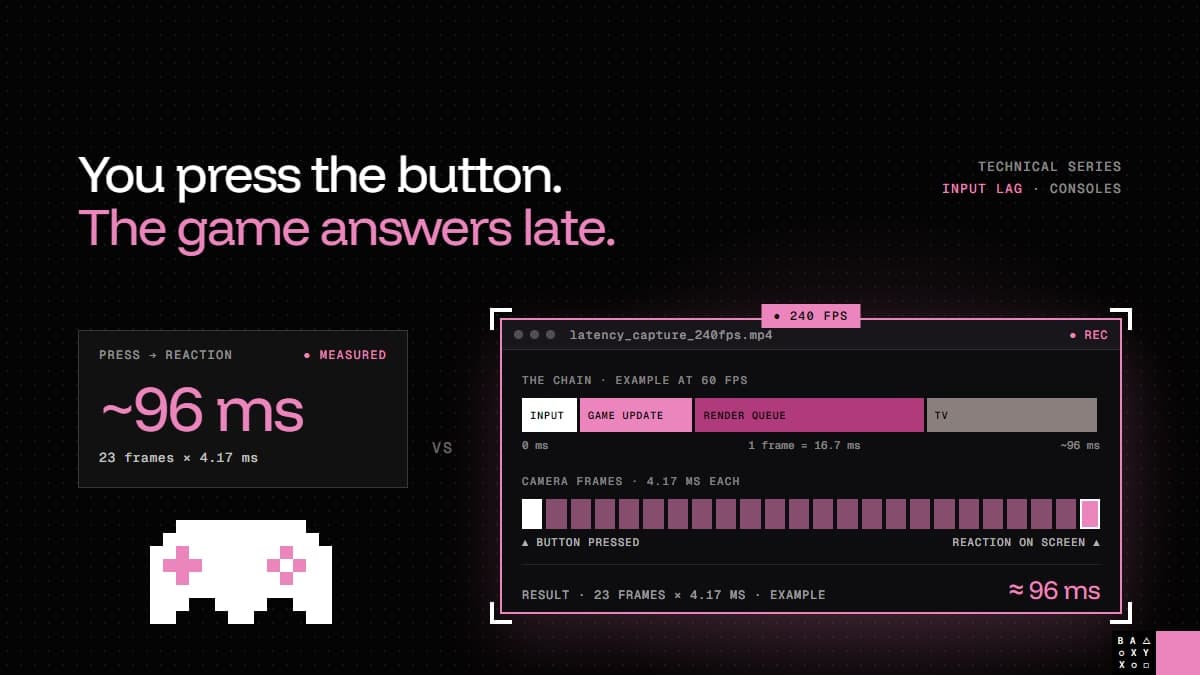
You press the button. The car turns... a moment later.
Nobody writes "input lag" in a review. They write that the game feels heavy, floaty or unresponsive - and that is often the first thing players notice when a PC game arrives on console. The PC version felt sharp. The console version runs at a stable frame rate. And still, something is off.
When studios ask me about it, my answer is always the same: input lag is never one thing. It's a chain. So in this article I'll walk through where the milliseconds hide, how to measure them with nothing more than a high-speed camera, and what actually shortens the chain in a port.
Input lag is a chain, not a number
Here is what happens between your thumb and your eyes:
- The controller is polled. The console reads the controller state at a fixed rate. A press that happens just after a read waits for the next one.
- The game updates. The game usually reads input once per frame, at the start of its update. If the press arrives just after that point, it waits a whole frame - and some games need one more frame before the result shows up in the simulation.
- The GPU renders and queues the frame. To keep the frame rate stable, the CPU often prepares the next frame while the GPU is still drawing the current one. Each frame waiting in that queue is another frame of delay.
- The frame waits for the display. With vertical sync, a finished frame waits for the next screen refresh before it's shown.
- The TV processes the image. Many TVs run their own picture processing before showing the frame. Outside game mode, that alone can add tens of milliseconds.
No single step looks dramatic. But they add up - and the frame rate decides how expensive each step is:
| Frame rate | One frame costs | Two extra buffered frames add |
|---|---|---|
| 120 fps | 8.3 ms | 16.7 ms |
| 60 fps | 16.7 ms | 33.3 ms |
| 30 fps | 33.3 ms | 66.7 ms |
That table is the whole reason ports feel different. A PC game tested at 144 Hz on a gaming monitor hides a lot of buffering. Lock the same game to 30 or 60 fps on a console connected to a living-room TV, and every frame in the chain suddenly costs two to four times more.
Why ports are especially exposed
Three things make input lag a typical porting problem rather than a PC problem:
- Lower, locked frame rates. Consoles - especially handhelds - often run the game at 30 or 60 fps, so the same pipeline produces more milliseconds of delay. On a hybrid like Nintendo Switch 2, docked and handheld modes can even run with different targets.
- More buffering for stability. To hit a stable frame time on fixed hardware, it's tempting to let the CPU run further ahead of the GPU. Smoother frame rate, heavier feel.
- TVs instead of monitors. Developers test on monitors at their desks. Players play on TVs that may not be in game mode.
There's also a design layer on top of the technical one. Long wind-up animations, input that is only accepted at certain animation frames, or a camera that smooths movement too much can all make a game feel slow, even when the technical chain is short. A good port looks at both.
How to measure input lag with a 240 fps camera
You don't need special equipment to measure end-to-end input lag. A phone that can record slow-motion video at 240 fps is enough.
- Set up the shot. Put the controller right in front of the screen, so the camera sees your thumb on the button and the game in the same frame.
- Pick a clear reaction. Choose an action with an instant, visible result: a jump, a shot, a menu cursor moving. Avoid anything with a wind-up animation for the first measurement.
- Record at 240 fps. Press the button sharply, wait a moment, repeat. Ten to twenty presses per test is a good number.
- Count the frames. Step through the video frame by frame. Mark the frame where the button bottoms out and the first frame where something changes on screen.
- Do the math. At 240 fps every video frame is 4.17 ms. Twenty-three frames between press and reaction means roughly 96 ms.
- Average and compare. Single presses vary, because the press lands at a random point in the game's frame. Use the average across all presses, and compare like with like: same scene, same settings, same display.
It's simple, it's repeatable, and it works on every device - PC, console, handheld or phone - because it measures what the player actually experiences, from thumb to pixel. The result isn't precise to the millisecond (each video frame is about 4 ms), but it's precise enough to see whether a change helped.
How to shorten the chain
Once you can measure it, you can cut it. The usual levers, roughly in the order we look at them:
- Read input as late as possible. Sample the controller right before the game uses it, not at an arbitrary earlier point in the frame.
- Make sure input lands in the current frame. Check that the press affects the very next simulated frame, not the one after it - for example when gameplay runs on a fixed timestep.
- Cut buffered frames. Limit how far the CPU can run ahead of the GPU and avoid deeper buffering than the game needs.
- Keep the render queue short. Fewer frames waiting to be shown means less delay, as long as frame pacing stays even.
- Review the design layer. Shorten wind-ups where they don't serve the game, and make sure input isn't locked out longer than intended.
- Test on real TVs. In game mode and outside it, so you know what players will experience in their living rooms.
Each change gets measured again with the same camera setup. That's the point of a simple method: you can run it after every fix.
Responsiveness is part of a port, not a polish pass
When we port a game, every milestone has a performance gate: if the build doesn't hit its target frame rate and memory on the platform, we don't move on. Controls are adapted for each platform's controller as part of the port, not as a polish pass at the end. And a port that hits its frame rate but feels heavier than the original isn't finished.
If you'd like to know how your game will feel on PlayStation, Xbox or Switch 2, get a free estimate.
Frequently Asked Questions
What causes input lag in console games?
Input lag builds up along a chain: controller polling, the game reading input and updating, the CPU and GPU preparing and queuing frames, waiting for the screen refresh, and the TV's own image processing. Each step adds a little; together they decide how responsive the game feels.
How do you measure input lag?
Film the controller and the screen together with a 240 fps camera, then count the video frames between the moment the button is pressed and the first reaction on screen. Each frame is 4.17 ms. Repeat 10-20 times and use the average.
How much input lag does one frame add?
One frame costs 16.7 ms at 60 fps, 33.3 ms at 30 fps and 8.3 ms at 120 fps. That's why buffering that is barely noticeable on a high-refresh PC monitor can make a 30 fps console version feel heavy.
Why does a game feel more sluggish on console than on PC?
Console versions often run at lower, locked frame rates, may buffer more frames to keep performance stable, and are played on TVs that add processing outside game mode. The same pipeline therefore produces more milliseconds of delay.
How do you reduce input lag in a game port?
Read input as late as possible, make sure a press affects the next simulated frame, limit how many frames the CPU queues ahead of the GPU, keep frame pacing even, review long wind-up animations, and test on TVs both in and outside game mode - measuring after every change.
Does LYNXBYTE GAMES optimize responsiveness when porting?
Yes. Every milestone has a performance gate with a target frame rate for each platform, and controls are adapted for each platform's controller as part of the port.