Docked vs Handheld: Two Performance Profiles in One Switch 2 Build
One Switch 2 build, two very different consoles. Why a good port ships a handheld profile and a docked profile in the same build, what each one should change, and how to switch between them live - without a restart, a reload or a stutter.
 Sylwester PilarzHead of Design
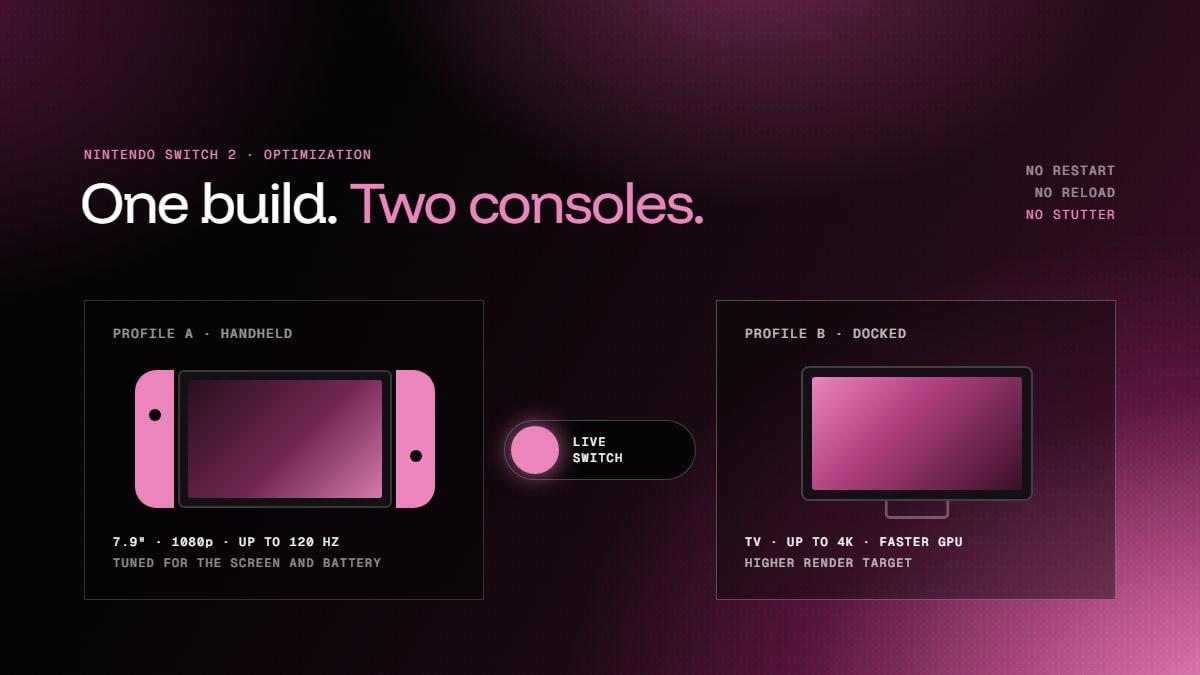
One Switch 2 build. Two very different consoles.
In handheld mode, your game runs on the built-in 1080p screen, at up to 120 Hz, on battery. Put the console in the dock and the same build can output up to 4K to a TV - with the GPU running faster than it does in handheld. Same cartridge, same code, a very different place to show it.
That's why a good Switch 2 port doesn't pick one setting and hope. It ships two performance profiles in one build and moves between them the moment the player docks or undocks. When it works, nobody notices. When it doesn't, someone is playing a blurry game on a 65-inch TV - or watching their battery melt on the bus.
Why one setting can't fit both
The two modes pull a port in opposite directions.
Handheld is a 7.9-inch screen held at arm's length, a battery and a device that has to stay comfortable in the hands. Detail that costs a lot of GPU time but is invisible at that size is wasted - and it is paid for in battery life and heat.
Docked is a TV across the room, often a large one. Everything the handheld profile could get away with - a lower internal resolution, softer upscaling, simpler effects - suddenly shows on a screen many times bigger.
Tune the game for the TV and it struggles in handheld. Tune it for handheld and it looks soft in the living room. The answer isn't a compromise in the middle; it's two profiles, each honest about the screen it's on. We covered the basics in our glossary entry on docked mode - this article is about how to build them.
What goes into each profile
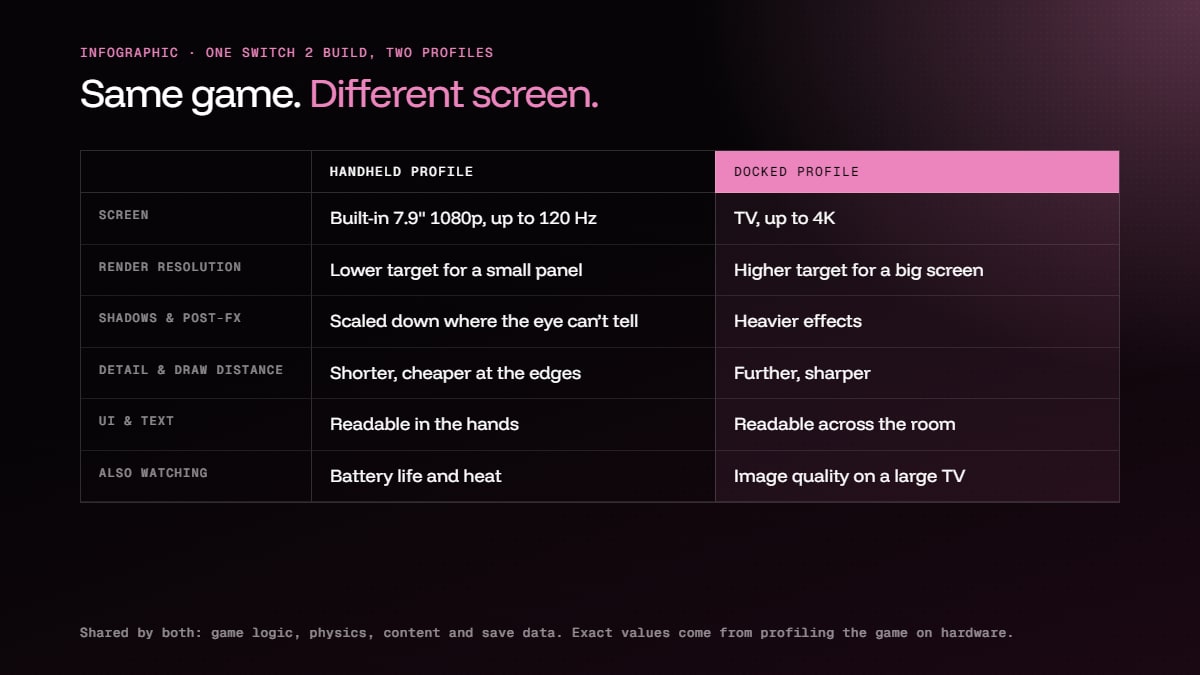
A profile is simply a named set of settings the game applies as a group. The exact values come from profiling your game on the hardware, but these are the settings that usually move:
- Render resolution and upscaling. The biggest lever. Handheld renders fewer pixels for a 1080p panel; docked aims at a higher target for the TV. Dynamic resolution helps both profiles hold their frame rate in heavy scenes.
- Frame rate target. Decide per mode, and decide deliberately. A stable target beats a higher number that wobbles, and the right choice may differ between the two modes.
- Shadows, lighting and post-processing. Shadow resolution and distance, ambient occlusion, reflections and post effects are expensive and often barely visible on the small screen - good candidates to scale down in handheld.
- Level of detail and draw distance. How far detail reaches and when models switch to simpler versions. A TV shows more of the distance; the handheld screen hides more of it.
- UI and text scale. Not a performance setting, but it belongs to the profile. Text that reads well on a TV across the room can be cramped in handheld, and the other way round. Both have to stay readable.
What should not change between profiles: game logic, physics, content and save data. A player who undocks in the middle of a boss fight is still in the same fight. Profiles change how the game is drawn, not what the game is.
Most engines already have the building blocks. Unreal Engine has scalability settings and device profiles; Unity has quality levels and a render scale in its render pipelines. A port groups these into the two profiles and adds the code that switches between them.
The live switch: no restart, no reload, no stutter
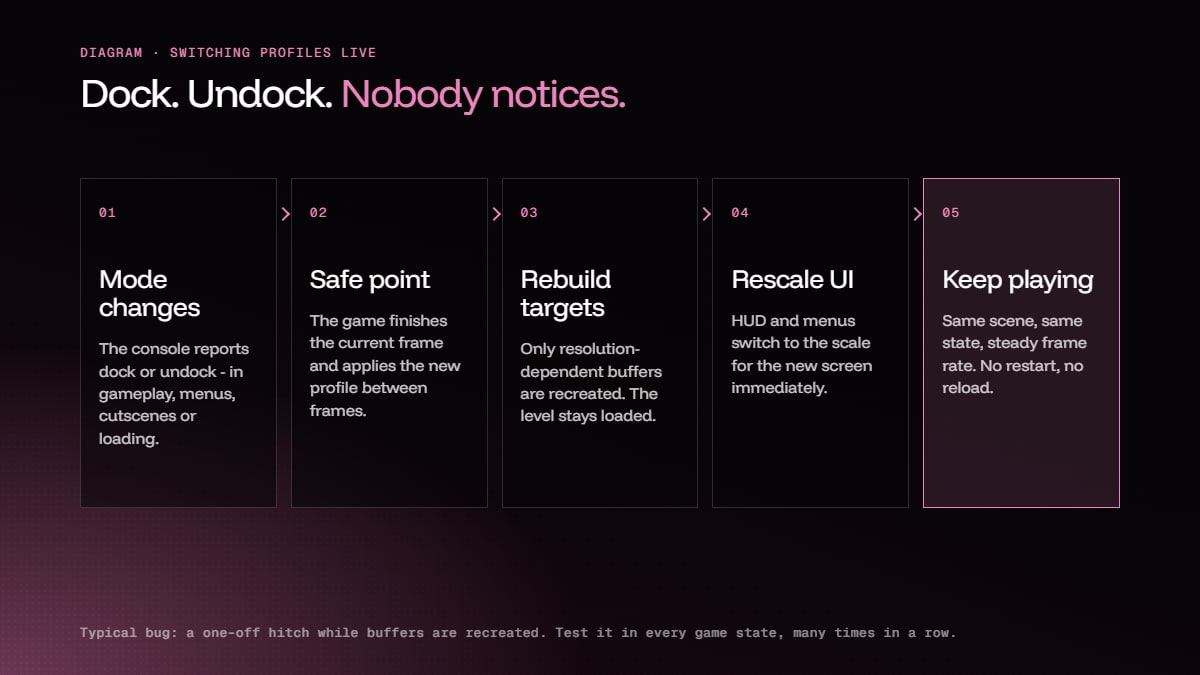
Players dock and undock whenever they like - mid-level, mid-cutscene, in a menu, during a loading screen. The system tells the game that the mode has changed, and from that moment the clock is running. A good switch looks like this:
- Listen for the change everywhere in the game, not only during gameplay. Menus, cutscenes, loading screens and pause screens all count.
- Apply the new profile at a safe point, between frames, rather than in the middle of rendering one.
- Rebuild only what depends on resolution - render targets and buffers sized for the old output - instead of reloading the level.
- Rescale the UI so the HUD and menus fit the new screen immediately.
- Keep the frame rate steady during the change. A one-off hitch while buffers are recreated is a typical problem; spreading the work or preparing it in advance avoids it.
The classic bugs are easy to recognise once you've seen them: the game keeps the handheld resolution after docking, the UI stays at the wrong scale until the next menu, a cutscene stutters because the switch happened mid-video, or the game only checks the mode when a level loads. None of them crash the game. All of them make it feel like a port.
How to test it
Profiles are tuned by measuring, not by guessing, so the testing starts early - on real hardware, in both modes, in the heaviest scenes the game has.
- Profile both modes separately. The heaviest scene in handheld is not always the heaviest one docked.
- Dock and undock on purpose, everywhere. In gameplay, menus, cutscenes, loading screens and while saving. Repeat it quickly, several times in a row.
- Play on a big TV and in hand. A setting that looks fine on a monitor at a desk can look soft on a large TV, and text that's fine on a TV can be tiny in handheld.
- Watch battery and heat in handheld over a longer session, not just the frame rate.
Platform requirements for console features are part of certification, and the details are confidential, so I won't quote them. But a game that handles every mode change cleanly, in every state, is in a much better place when it gets there.
Two consoles, one build
Docked and handheld are the clearest example of what Switch 2 porting really is: not squeezing a PC game onto smaller hardware once, but making it feel native on a device that changes shape while you play. It sits next to the other Switch work we've written about - memory budgets in numbers and UX and UI on consoles.
If you're planning a Nintendo Switch 2 port and want to know how your game behaves in both modes, send us the details. You'll get a free first estimate within 3 business days.
Frequently Asked Questions
What must change between handheld and docked mode on Switch 2?
How the game is drawn: render resolution and upscaling, sometimes the frame rate target, shadows, lighting and post-processing, level of detail and draw distance, and the scale of the UI and text. Game logic, physics, content and saves stay the same in both modes.
Does a Switch 2 game need separate builds for docked and handheld?
No. One build contains two performance profiles and switches between them live when the player docks or undocks the console.
What resolution does Switch 2 use in handheld and docked mode?
Handheld mode uses the built-in 7.9-inch 1080p screen at up to 120 Hz. Docked mode can output up to 4K to a TV, and the GPU runs faster than in handheld. The resolution a game actually renders at is chosen by the developer for each mode.
Can a game switch between docked and handheld without restarting?
Yes, and it has to. The game applies the new profile between frames, recreates only the resolution-dependent render targets and rescales the UI, so play continues without a reload or a visible hitch.
How do you optimise a game for Switch 2 handheld mode?
Profile the heaviest scenes on real hardware in handheld, then scale down what the small screen doesn't show - internal resolution, shadow quality, expensive post-processing and distant detail - while keeping the frame rate stable and watching battery life and heat over longer sessions.